
Wrong dates after Google Takeout, and how to fix them
Published
You exported your Google Photos library with Takeout and unzipped it. Now File Explorer, your NAS or your new photo app shows years of pictures on one day: the day you downloaded them. Or some photos land in the right year and others do not.
Two different dates are involved, and usually only one of them is wrong.
Which date is wrong
A photo or video has a date on the file, and often a second date inside it.
- The file date is what File Explorer shows as Date modified, and what many apps use when they find nothing better. Google's help page on Takeout says: "Based on the time the photo or video is downloaded, your operating system can assign a new timestamp to the file itself." So after a Takeout, the file dates come from around the download, not from the day you took the pictures.
- The date inside the file is written by the camera or phone when you take the picture, into a part of the file called EXIF (videos have their own fields). The same page says it survives: "The photo or video metadata still has the original timestamp preserved in the metadata embedded within the files."
So a photo straight from a phone camera usually still carries its date. An app that reads the date inside the file shows it on the right day. An app that sorts by file date shows the download day.
Which files have their date only in the .json
Some files never had a date inside, or Google Photos knows a better one:
- Pictures from chat apps and the web. In a Google Photos Takeout Helper issue about wrong dates after an upload to iCloud, the photos that went wrong had come from WhatsApp, Messenger, Snapchat or other downloads.
- Screenshots and scans, which may have no camera date inside.
- Dates and places you changed in Google Photos. Google's page says that metadata "that isn't from the original file, like comments within Google Photos" goes into a separate JSON file. An edit you made in Google Photos is such a detail.
For these files, the date Google Photos showed you is in the .json file next to the photo, under photoTakenTime. What the .json files hold shows the rest of it.
Photos dated 1970
A date of 1 January 1970, or 31 December 1969 in time zones west of UTC, is what a time of 0 looks like. The .json counts time in seconds from midnight UTC on 1 January 1970, so somewhere along the way a program read or wrote 0 instead of the real time.
Check your own files
One photo
- Right-click the photo in File Explorer, choose Properties, then the Details tab.
- Look at Date taken, under Origin. If it shows a date, the photo carries its date inside. If it is empty, Windows found none. Windows does not read every format, so a PNG or a video can have a date that this field does not show.
- Open the photo's
.jsonin Notepad and findphotoTakenTime. Itstimestampis the moment the photo was taken, in seconds since 1 January 1970, UTC.
To turn that number into a date, put it in place of the one in this line and run it in PowerShell:
[DateTimeOffset]::FromUnixTimeSeconds(1565627400).UtcDateTimeThis one prints 12 August 2019, 4:30 PM, in your Windows date format. The time is UTC, not the local time where the photo was taken.
A whole folder
With ExifTool installed (the merge guide shows how), this lists every file that has neither a photo date (DateTimeOriginal) nor a video date (QuickTime:CreateDate) inside. Run it in Command Prompt, with your folder in place of D:\Takeout:
exiftool -q -q -r --ext json -if "not $DateTimeOriginal and (not $QuickTime:CreateDate or $QuickTime:CreateDate eq '0000:00:00 00:00:00')" -p "$Directory/$FileName" "D:\Takeout"The files it prints are the ones whose date lives only in the .json, or nowhere.
Fix it yourself, for free
- A few files. Change the date in a photo app that can edit it, using the date from the
.json. - Many files, and a command line does not scare you. ExifTool can copy
photoTakenTimefrom each.jsoninto its photo. Merge Google Takeout .json files into your photos has the commands we tested and the cases where they do nothing. - Many files, with a ready-made tool. The comparison covers the free ones, Google Photos Takeout Helper Neo among them, and when each is the better choice.
Whichever you choose, work on a copy, and keep the zip files until you have checked the result.
Where the free way falls short
- Pairing. Newer exports name the file
IMG_1234.jpg.supplemental-metadata.json, cut long names short and number duplicates in a way older scripts do not expect. Those names, explained. - Time zones. The
.jsonholds a moment in UTC, with no time zone. ExifTool writes it in your PC's time zone. In our test on made-up files, a photo taken at 13:30 in São Paulo (16:30 UTC) came out as 01:30 the next day on a PC set to Korean time. - Camera dates. The usual command replaces the date already in a photo with the
.json's, even when the camera's was right. In our test it did exactly that. - The file date. ExifTool gives each file it changes the file date of the moment you ran it, unless the command also copies the date into
FileModifyDate.
Datestitch in about a minute
Datestitch is a Windows app made for this one job.
- Drop in your Takeout zip files as Google gave them, or the folder you unzipped them into. Add every part of one export at once.
- The preview shows how many files get a date, where each date comes from, and which files have none. Nothing is copied yet, and the preview is free.
- Choose a new, empty folder and click Copy and fix. Each copy gets its date and place written inside and its file date set, sorted by year and month or by album. A report lists every file and what is left to sort by hand.
When a photo already has a date and the .json agrees within a day, it keeps the photo's own. When they differ by more, it writes the .json's, the date Google Photos showed you. Dates go in the local time of the photo's place when Google or the photo knows it, otherwise in your PC's time zone, and the report marks those files.
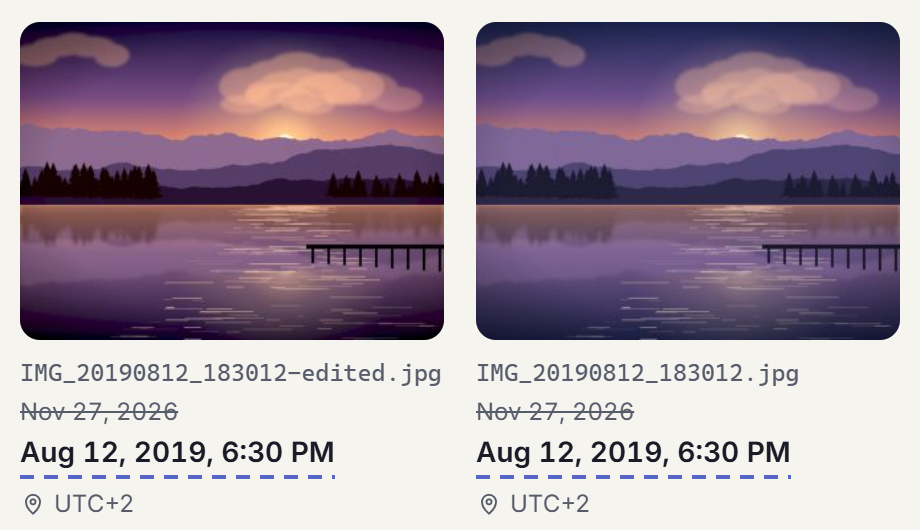
What Datestitch does not do
We have tested Datestitch only on exports we built to imitate a Takeout, in five account languages. It has not yet run on a real Google Takeout.
- Run on a Mac or Linux. It is for Windows 10 and 11, 64-bit.
- Invent a date. A file with no date in Google's
.json, inside the file or in its name goes into a_no-datefolder and the report. - Show every file in the preview. JPEG and PNG files get a thumbnail. HEIC files and videos get a plain tile.
- Carry captions or faces, open
.tgzexports, or write inside BMP, AVI, MKV or camera RAW files. Those get the right file date only. - Install without a warning. The installer is not code-signed yet, so Windows asks before it runs it.