
Merge Google Takeout .json files into your photos with ExifTool
Published
You have a Google Takeout: your photos, and beside each one a .json file with its date, place and caption. You want them merged, so the data sits inside each photo where any app can read it. The free tool ExifTool does it with one command. Here it is as we tested it on Windows, with the change newer exports need and the files it leaves untouched.
Why the data is in a separate file
A camera photo keeps its own date inside, and metadata "that isn't from the original file" goes into a separate JSON file, as Google's help page on Takeout puts it. So the .json holds the only date of a file that never had one, and anything you changed in Google Photos. Wrong dates after Google Takeout says which files that affects.
Merge with ExifTool, step by step
We ran every command here with ExifTool 13.64 in Command Prompt on Windows 11, on a made-up Takeout folder. Use Command Prompt: in PowerShell, a $ inside double quotes means something else, and some lines would break.
1. Install ExifTool
- Download the Windows Executable zip from exiftool.org.
- Extract it. In the extracted folder, rename
exiftool(-k).exetoexiftool.exe. - Keep
exiftool.exeand theexiftool_filesfolder together, in a folder on your PATH. Anywhere else works if you type the full path, such asC:\exiftool\exiftool.exe, where these commands sayexiftool. - Open Command Prompt (Start, type
cmd, press Enter) and typeexiftool -ver. It prints the version number.
These are the steps on ExifTool's install page.
2. Make a copy to work on
Unzip every part of your export into the same folder, so each photo and its .json end up side by side even if Google put them in different zip files. Then copy that folder, for example to D:\Takeout-copy. The commands change files in place. Keep the zip files until you have checked the result.
3. Check which names your export uses
Open a folder such as Photos from 2019 and look at the .json beside a photo:
IMG_0001.jpg.jsonis the older naming.IMG_0001.jpg.supplemental-metadata.jsonis the newer one, used since late 2024 though not in every export.
If you find both, run the command once for each. Each run skips the files whose .json it cannot find.
4. Run the command
The command most guides copy is StarGeek's answer on Stack Overflow, from 2017, updated for the 2020 format. It is for the older names and JPG files only. Put your folder in place of D:\Takeout-copy:
exiftool -r -d %s -tagsfromfile "%d/%F.json" "-GPSAltitude<GeoDataAltitude" "-GPSLatitude<GeoDataLatitude" "-GPSLatitudeRef<GeoDataLatitude" "-GPSLongitude<GeoDataLongitude" "-GPSLongitudeRef<GeoDataLongitude" "-Keywords<Tags" "-Subject<Tags" "-Caption-Abstract<Description" "-ImageDescription<Description" "-DateTimeOriginal<PhotoTakenTimeTimestamp" -ext jpg -overwrite_original D:\Takeout-copyFor the newer names and every file type, use this version. It changes %F.json to %F.supplemental-metadata.json, takes -ext "*" --ext json from a later answer so HEIC, PNG and video files are included, and adds FileModifyDate so the file date matches too:
exiftool -r -d %s -tagsfromfile "%d/%F.supplemental-metadata.json" "-GPSAltitude<GeoDataAltitude" "-GPSLatitude<GeoDataLatitude" "-GPSLatitudeRef<GeoDataLatitude" "-GPSLongitude<GeoDataLongitude" "-GPSLongitudeRef<GeoDataLongitude" "-Keywords<Tags" "-Subject<Tags" "-Caption-Abstract<Description" "-ImageDescription<Description" "-DateTimeOriginal<PhotoTakenTimeTimestamp" "-FileModifyDate<PhotoTakenTimeTimestamp" -ext "*" -overwrite_original -progress --ext json D:\Takeout-copyFor older names with every file type, put "%d/%F.json" back in this second command. We ran that too.
What the parts do:
-r: every folder inside.-d %s: read the.jsontimes as seconds since 1970, as they are stored.-tagsfromfile "%d/%F.supplemental-metadata.json": for each file, read the.jsonin its folder (%d) named after the file with its extension (%F) plus that ending.DateTimeOriginal: the date taken.FileModifyDate: the file date; without it, each changed file gets the time of the run.- The
GPSparts: the place. TheRefparts are needed for places west or south. Keywords,Subject,Caption-Abstract,ImageDescription: tags and your caption.-overwrite_original: no backups. Without it, ExifTool keepsIMG_0001.jpg_originalbeside each file.
In a .bat file, double every %: -d %%s and "%%d/%%F.supplemental-metadata.json", as ExifTool's manual says. We ran the second command both ways.
5. Read the last lines
For each file whose .json it cannot find, ExifTool prints two warnings and moves on. On our test folder:
Warning: Error opening file - Takeout/Google Photos/Photos from 2019/IMG_0125(1).jpg.supplemental-metadata.json
Warning: No writable tags set from Takeout/Google Photos/Photos from 2019/IMG_0125(1).jpg.supplemental-metadata.json
Nothing changed in Takeout/Google Photos/Photos from 2019/IMG_0125(1).jpg
The run still ends normally, with a count:
    3 directories scanned
    6 image files updated
    6 image files unchanged
Every file counted as unchanged got nothing. In a large export the warnings scroll past quickly, so check the count.
6. Videos
The command above writes DateTimeOriginal into MP4 and MOV files, in XMP and UserData fields, but leaves the video's QuickTime CreateDate as it was. In our test video it stayed 0000:00:00 00:00:00. To write the video dates too, run this afterwards:
exiftool -r -d %s -api QuickTimeUTC -tagsfromfile "%d/%F.supplemental-metadata.json" "-QuickTime:CreateDate<PhotoTakenTimeTimestamp" "-QuickTime:ModifyDate<PhotoTakenTimeTimestamp" "-QuickTime:TrackCreateDate<PhotoTakenTimeTimestamp" "-QuickTime:MediaCreateDate<PhotoTakenTimeTimestamp" "-FileModifyDate<PhotoTakenTimeTimestamp" -ext mp4 -ext mov -overwrite_original D:\Takeout-copyExifTool's QuickTime notes say these dates "should be stored as UTC", and -api QuickTimeUTC does that. Our test video's .json said 12:00 UTC, and its CreateDate came out as 2019:08:22 12:00:00.
7. Optional: keep dates already in the photos
The commands replace a date already in a photo; in our test, a camera date was overwritten. To fill in only the files that have no date, add -if "not $DateTimeOriginal" before -tagsfromfile. The camera date then stayed, but files that have a date also get no place this way.
8. Optional: remove places of 0, 0
If a .json holds 0.0 for latitude and longitude, the command writes that as a real position, 0° N 0° E, in the Atlantic off West Africa. This removes positions of exactly 0, 0 and keeps the file dates (-P). In our test it left the real ones alone:
exiftool -r -if "$GPSLatitude# == 0 and $GPSLongitude# == 0" "-gps*=" -P -overwrite_original D:\Takeout-copyWhere the free way falls short
The %F rule needs the .json named exactly after the photo plus one ending. In our test, these got only the two warnings:
- Names cut short. Users report that Takeout cuts a
.jsonname to 51 characters, so by that ruleIMG_20190817_181200_HDR_portrait.jpggetsIMG_20190817_181200_HDR_portrait.jpg.supplemen.json, and a longer name loses the ending entirely. kaytat's exiftool-scripts-for-takeout try each shortened ending in turn. They write dates only, in place. - Numbered duplicates.
IMG_0125(1).jpghasIMG_0125.jpg.supplemental-metadata(1).json. In older exports it wasIMG_0125.jpg(1).json. - Edited copies.
IMG_0003-edited.jpghas no.json; it shares the original's. - Live Photo videos.
IMG_0004.MP4has no.jsonof its own; its date is in the HEIC's.
For these, name the pair yourself, one file at a time, from the photo's folder. These leave a _original backup:
exiftool -d %s -tagsfromfile "IMG_0125.jpg.supplemental-metadata(1).json" "-DateTimeOriginal<PhotoTakenTimeTimestamp" "IMG_0125(1).jpg"
exiftool -d %s -tagsfromfile "IMG_0003.jpg.supplemental-metadata.json" "-DateTimeOriginal<PhotoTakenTimeTimestamp" "IMG_0003-edited.jpg"
exiftool -d %s -api QuickTimeUTC -tagsfromfile "IMG_0004.HEIC.supplemental-metadata.json" "-QuickTime:CreateDate<PhotoTakenTimeTimestamp" "-QuickTime:ModifyDate<PhotoTakenTimeTimestamp" "-FileModifyDate<PhotoTakenTimeTimestamp" "IMG_0004.MP4"
Two more limits:
- Time zones. ExifTool turns the UTC time into your PC's time zone and writes it with no zone. In our test, a photo taken at 13:30 in São Paulo (16:30 UTC) came out as 01:30 the next day on a PC set to Korean time.
- No list of what was left. The warnings are the only record.
The supplemental-metadata names, explained has more on the naming, and the comparison covers free tools that pair files for you.
Datestitch in about a minute
Datestitch is a Windows app that does the pairing and the writing, on copies.
- Drop in your Takeout zip files as Google gave them, or the folder you unzipped them into.
- Check the free preview: how many files get a date, where each date comes from, which have none.
- Choose a new, empty folder and click Copy and fix.
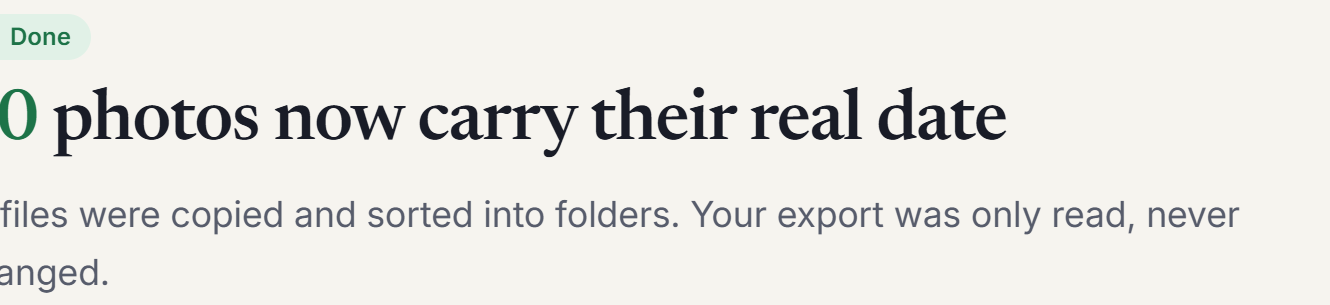
It pairs all the cases above. It writes the date into JPG, PNG, WebP, HEIC, GIF, MP4 and MOV copies, in the local time of the photo's place when that is known, and sets each copy's file date. It keeps a photo's own date when the .json agrees within a day, skips places of 0, 0, and lists every file in a report.
What Datestitch does not do
We have tested Datestitch only on exports we built to imitate a Takeout, in five account languages. It has not yet run on a real Google Takeout.
- Run on a Mac or Linux. It is for Windows 10 and 11, 64-bit.
- Carry captions or faces. Dates, places and album folders only.
- Write inside every format. BMP, AVI, MKV and camera RAW files get the right file date only.
- Show every file in the preview. JPEG and PNG files get a thumbnail. HEIC files and videos get a plain tile.
- Install without a warning. The installer is not code-signed yet, so Windows asks before it runs it.