Your Google Photos export lost its dates. Get them back.
Google Takeout hands you your photos in zip files, many of them with the wrong date, and a pile of .json files beside them. Datestitch reads those files and puts each date and place back into the photo it belongs to, then sorts everything into tidy folders. It works on a copy. Your download is never changed.
Windows download Coming soon
Get notified at launch Not open yet
Free for your first 500 files. Preview as much as you like.
Nothing is for sale or download yet. This page will say so when it is.
Before
IMG_2041.jpg
IMG_2041.jpg.supplemental-metadata.json
After
2019/07/IMG_2041.jpg
You asked Google for your photos. You got zip files.
Inside:
- Many photos show the day you downloaded them, not the day you took them. Move them into another app and years of pictures can pile up on a single day.
- The real date, the place and the album sit in separate
.jsonfiles, such asIMG_2041.jpg.supplemental-metadata.json. When a name is long, Google cuts it short, down to endings like.suppl.json. - The same photo can turn up more than once: in its year folder, and again in each album.
- Edited copies and Live Photo videos have no
.jsonof their own.
Free command-line tools exist for this. Their public issue trackers describe the problems this app was built around: many dates not found, no photos found at all when the account is not in English, and one case where a user's own pictures were deleted (since fixed).
How it works
Drop in your Takeout
The zip files as you downloaded them, or the folders you already unpacked. Several zips at once are fine. You do not have to unzip anything.
Check the preview
Before anything is copied, you see how many photos and videos were found, how many dates can be restored and where each one comes from, how many duplicates will be skipped, and which files have no date at all. The preview is free, as often as you like.
Copy and fix
Datestitch writes a new folder with the dates and places inside the files, sorted by year and month or by album. You get a report at the end.
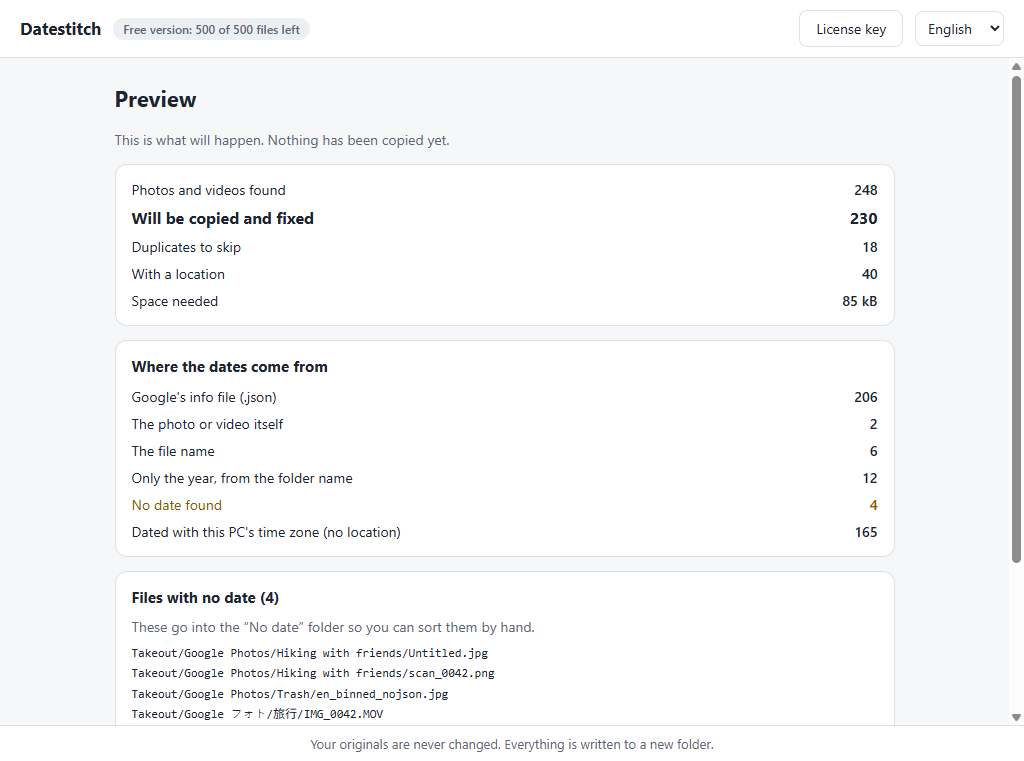
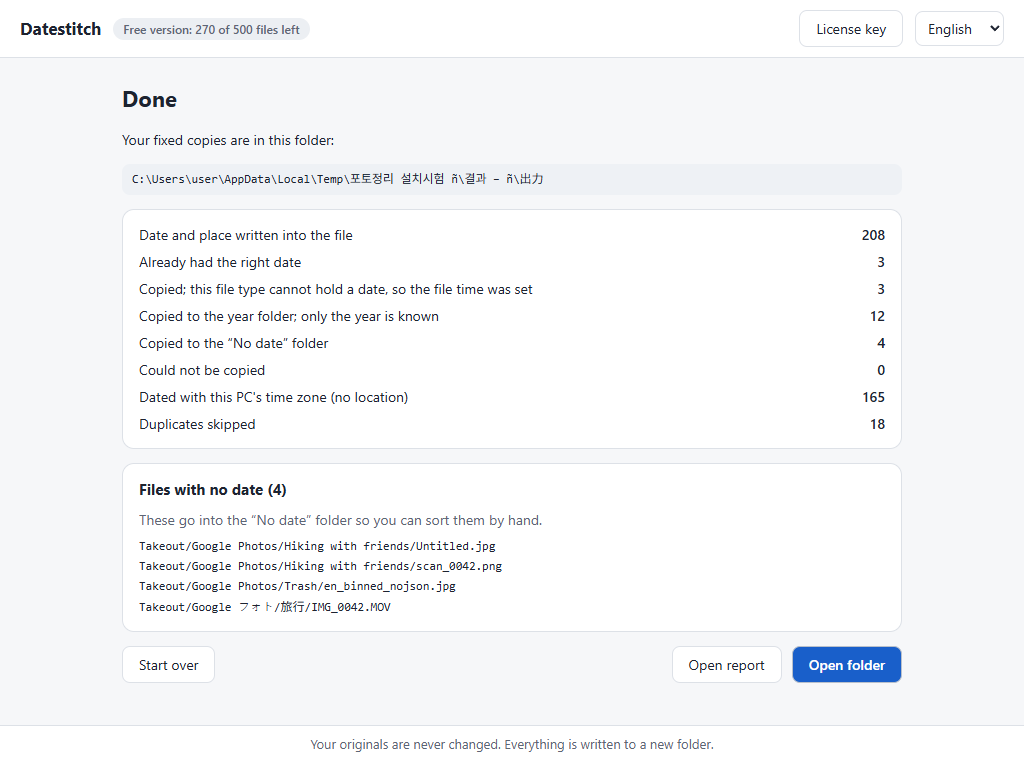
Screens from a test run on an export we built ourselves.
What it does
- Writes the date each photo or video was taken into the file itself (EXIF in most photos, XMP in GIFs, QuickTime fields in videos) and sets the file date to match.
- Writes the place (GPS position) when the photo has none and Google has one.
- Finds the right
.jsoneven when Google cut its name short, numbered it(1), or left it out for an edited copy or a Live Photo video. - Does not go by folder names, which change with your account's language. It recognises Google's
.jsonfiles by what is inside them, not by their names. - Sorts into
2019/07folders, or into your albums. - Skips exact duplicates, compared by content, not by name.
- When there is no
.json, it uses the date already in the file, then a date in the file name such asIMG_20190704_101500. - Files known only by their year (from their folder) go into that year's folder, with nothing written into them.
- Files with no date at all go into a
_no-datefolder, or stay in their album, and the report lists them, so you know exactly what is left to sort by hand. - Runs on your PC. No account, no upload. It goes online only to check a license key.
What it does not do
We would rather you know now.
- It cannot invent a date. If Google has no date for a file and neither the file nor its name has one, it stays undated.
- It does not sign in to Google or download anything. You make the Takeout export yourself. That also means it never sees your password.
- Windows only, for now. Built for 64-bit Windows 10 and 11.
- Zip files and folders only. If you chose
.tgzin Takeout, unpack it first. - Time zones are a best guess when a photo has no date of its own. Google's files store the moment a photo was taken, not the time zone you were in. If the photo has a location, Datestitch uses that place's time zone. If not, it uses your PC's time zone and marks the file “time zone assumed” in the report, so a photo from a trip abroad can be off by the time difference. Photos that carry the camera's own date keep it.
- Some formats can only be copied. BMP, AVI, MKV and camera RAW files cannot take a date inside the file, or we chose not to risk writing one. Damaged files are the same. They are copied, get the right file date, and are listed in the report.
- Duplicates are exact copies only. A resized or re-saved version of the same picture counts as a different photo.
- Dates, places and albums. Nothing else. Faces, descriptions and comments are not carried over.
- It needs space. It writes a full copy, so you need about as much free disk space as your photos take up.
Your photos are safe
- It opens your zip files and folders for reading only. There is no move mode, and it never deletes anything from your export.
- It writes only into a new folder you choose, and will not start if that folder is not empty, sits inside your export, or holds your export.
- Our tests take a checksum of every original file before and after a full run, and fail unless they match.
What we have tested, and what we have not
This is a new app. Here is exactly where it stands.
Tested
- Exports we built ourselves to look like ones from English, German, Spanish, Japanese and Korean accounts: zip files and folders, cut-short
.jsonnames, edited copies, videos, files with no.json. - Dates written and read back for JPG, PNG, GIF, WebP, HEIC, MP4 and MOV.
- Originals compared by checksum before and after every test run.
- Installing and working in folders with Korean, Japanese and Spanish characters in their names.
- Windows 11.
Not tested yet
- A real Google Takeout export. Every test so far used exports we built to imitate one.
- How long a large export takes.
- AVIF, TIFF, DNG, M4V and 3GP files. They are handled, but not tested yet.
- Windows 10.
- Importing the result into other photo apps.
- Code signing. The installer is not signed yet, so Windows would warn you when you run it. That is one reason there is no download here yet.
Price
Free
$0
Preview as much as you like, and copy and fix your first 500 files on a PC.
Full version
$24
One payment, no subscription. Use it on 2 PCs, with no file limit.
Get notified at launch Not open yet
Payment will be handled by Polar, our reseller, which also takes care of the sales tax or VAT for your country.
After you buy, you get a license key. Paste it into the app once, while you are online. After that it works offline. If it cannot check the key for 30 days, it asks you to go online once.
Moving to a new PC? In the app on the old one, click “Remove from this PC”, then use the key on the new one.
Refunds
Not happy? Ask within 14 days of buying and you get your money back, no questions asked. The address to write to will be listed here when sales open.
Questions
Will it change or delete my original files?
No. It only reads them. Everything it writes goes into a new, empty folder that you choose.
My Google account is in German, Japanese or Korean. Will it work?
It is built for that. It recognises Google's files by what is inside them, not by folder names, so you should not need to switch your account to English and export again. So far we have tested it on exports we built to look like English, German, Spanish, Japanese and Korean accounts, not yet on real ones.
Do I need to install ExifTool or anything else?
No. Everything it needs comes in the installer.
What happens to files it cannot date?
They are copied to the _no-date folder, or stay in their album folder, and the report lists them so you can sort them by hand.
Can I use the result with Immich, Synology Photos or Apple Photos?
We have not tested any of them yet. The dates and places go into the standard EXIF and QuickTime fields inside each file, and the file dates are set as well.
I only have a few hundred photos.
Then the free version may do the whole job. It copies and fixes up to 500 files on a PC, and the preview tells you how many you have before you start.
When can I get it?
Not yet. Sales and the download are not open, and this page will say so when they are.